
6 Best AI Image Upscalers in 2026: Quality, Features & Results
Compare leading AI image upscalers in 2026 on quality, speed, and workflow fit. See which tools work best for photos, AI art, product visuals, and commercial publishing.

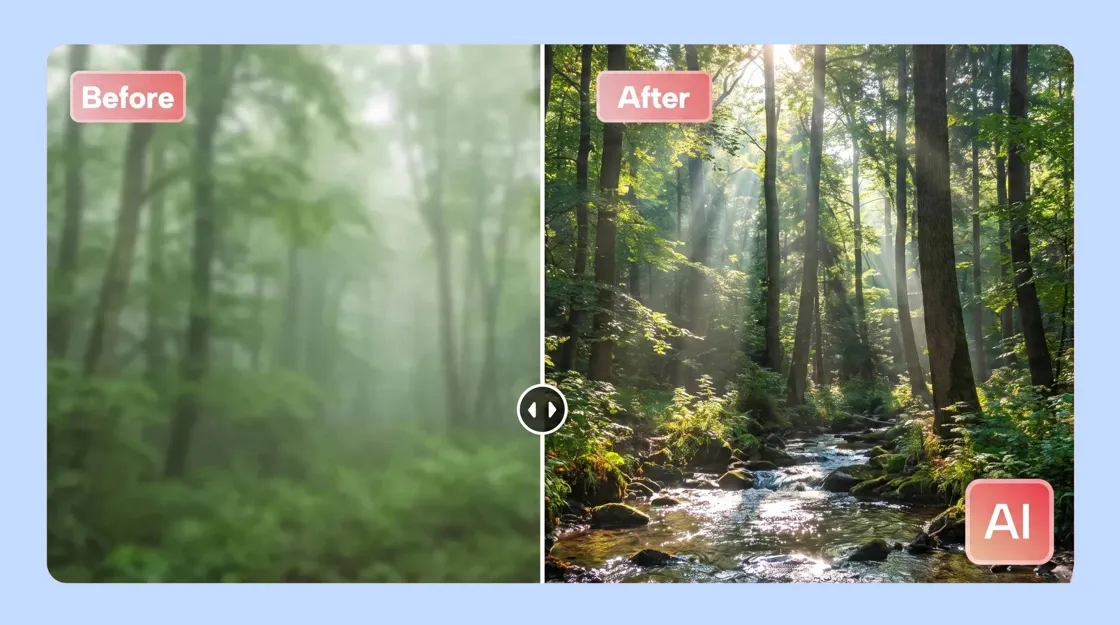
Image upscaling is about more than increasing resolution. The best AI upscalers restore details, sharpen textures, and improve clarity without introducing artifacts or unnatural results. In 2026, AI upscaling has become a core part of ecommerce, marketing, and creative workflows, helping businesses prepare images for product listings, ads, social media, and print.
This guide explains how AI image upscaling works, how we evaluated the leading tools, which ones deliver the best results at high magnification, and how to turn an enhanced image into a polished, publish-ready asset.
Quick comparison: 6 best AI image upscalers
Not every AI image upscaler is built for the same job, some prioritize maximum photo fidelity, while others focus on artwork, speed, privacy, or ecommerce workflows. Here's a quick comparison of the best AI image upscalers in 2026 to help you find the right tool for your needs.
|
Tool |
Best for |
|---|---|
|
Topaz Gigapixel |
AI | Professional photography & print fidelity |
|
Magnific AI |
AI artwork and creative detail |
|
Upscay |
Best free local/private upscaling |
|
LetsEnhance |
Browser batch & catalog work |
|
Upscale.media |
Free quick upscaling |
|
Designkit |
Ecommerce: enhance + listing/marketing assets |
What is an AI image upscaler? A complete overview
An AI image upscaler enlarges an image while intelligently rebuilding missing details instead of simply stretching existing pixels. Using machine learning, it predicts textures, sharpens edges, and restores clarity to produce higher-resolution results. The best AI image upscaler online can improve photos, artwork, and product images, making them suitable for digital use, printing, or professional marketing.
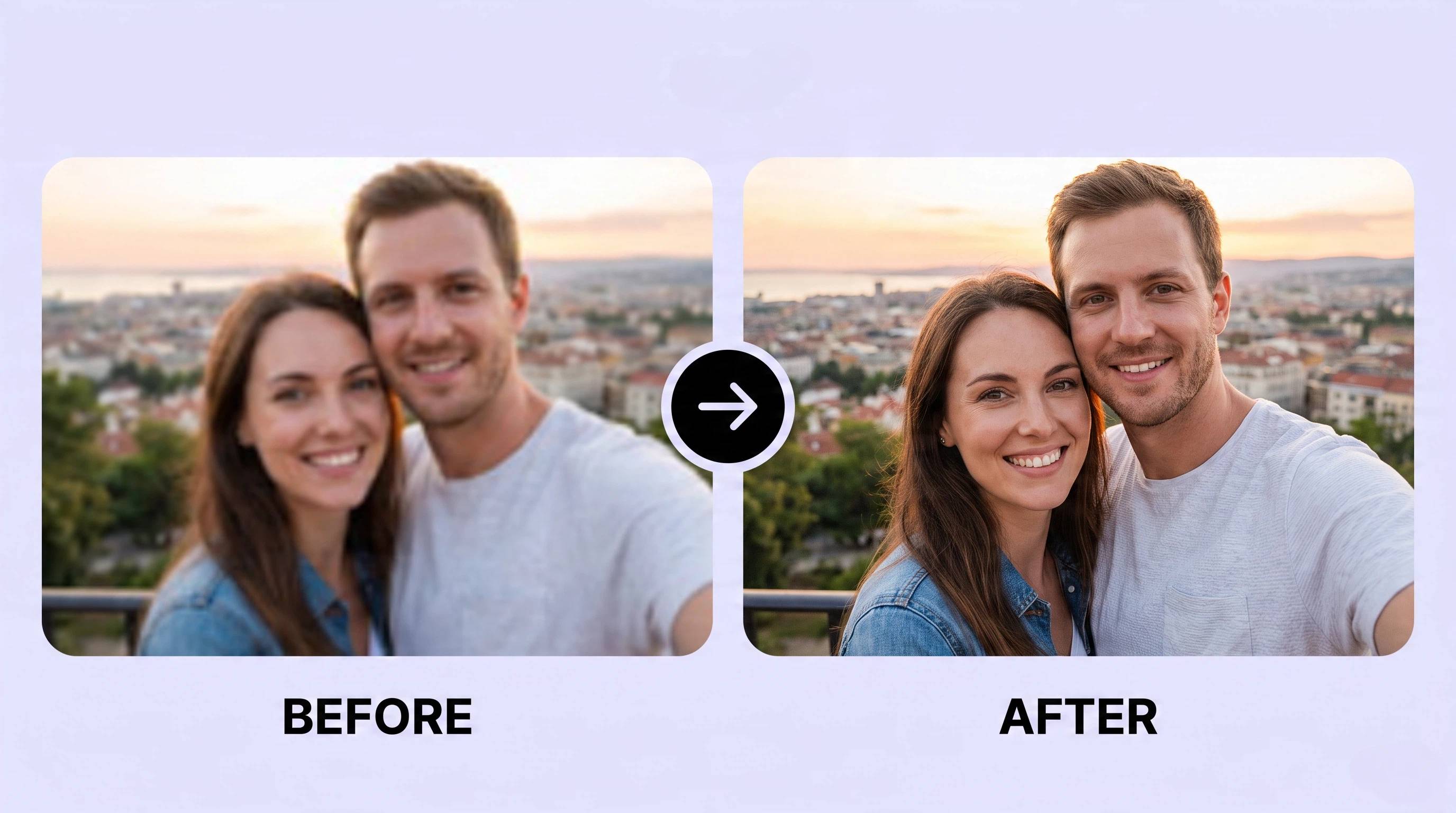
How AI image upscaling differs from traditional resizing
Traditional image resizing and AI upscaling may seem similar because both increase image dimensions, but they work in fundamentally different ways. Understanding this difference explains why AI-generated results appear sharper, cleaner, and far more detailed than images enlarged with conventional resizing methods.
Pixel interpolation vs. AI reconstruction
Traditional resizing increases image dimensions by estimating nearby pixel values, often producing soft edges and blurry details. AI upscaling analyzes the image content and reconstructs missing information instead of merely enlarging pixels, making it one of the best ways to enhance image quality for photos that need higher resolution.
Super-resolution models
AI image upscalers use super-resolution models trained on millions of image examples to recreate realistic fine details. Rather than guessing pixel placement alone, these models recognize patterns in faces, landscapes, products, and text, delivering sharper, more natural-looking results than conventional resizing methods.
Texture prediction
Instead of copying existing textures, AI predicts how surfaces such as skin, fabric, wood, or foliage should appear at a higher resolution. This intelligent reconstruction produces richer detail while reducing blur and artifacts, which is why many users consider AI the best free image upscaler approach for restoring older or low-resolution images.
Edge enhancement
AI detects object boundaries and refines edges to keep lines, shapes, and text crisp after enlargement. This minimizes jagged outlines and preserves visual definition, making enlarged images look cleaner and more professional for photography, ecommerce, graphic design, and print applications.
Common image types that benefit from AI upscaling
Not every image needs upscaling, but certain file types see significant improvements in sharpness and clarity. An AI image upscale tool is especially useful when you need to enlarge images without sacrificing visual quality.
Product photos
Upscaling restores fine product details, improves edge definition, and prepares ecommerce images for high-resolution marketplaces, catalogs, and zoom-enabled product pages.
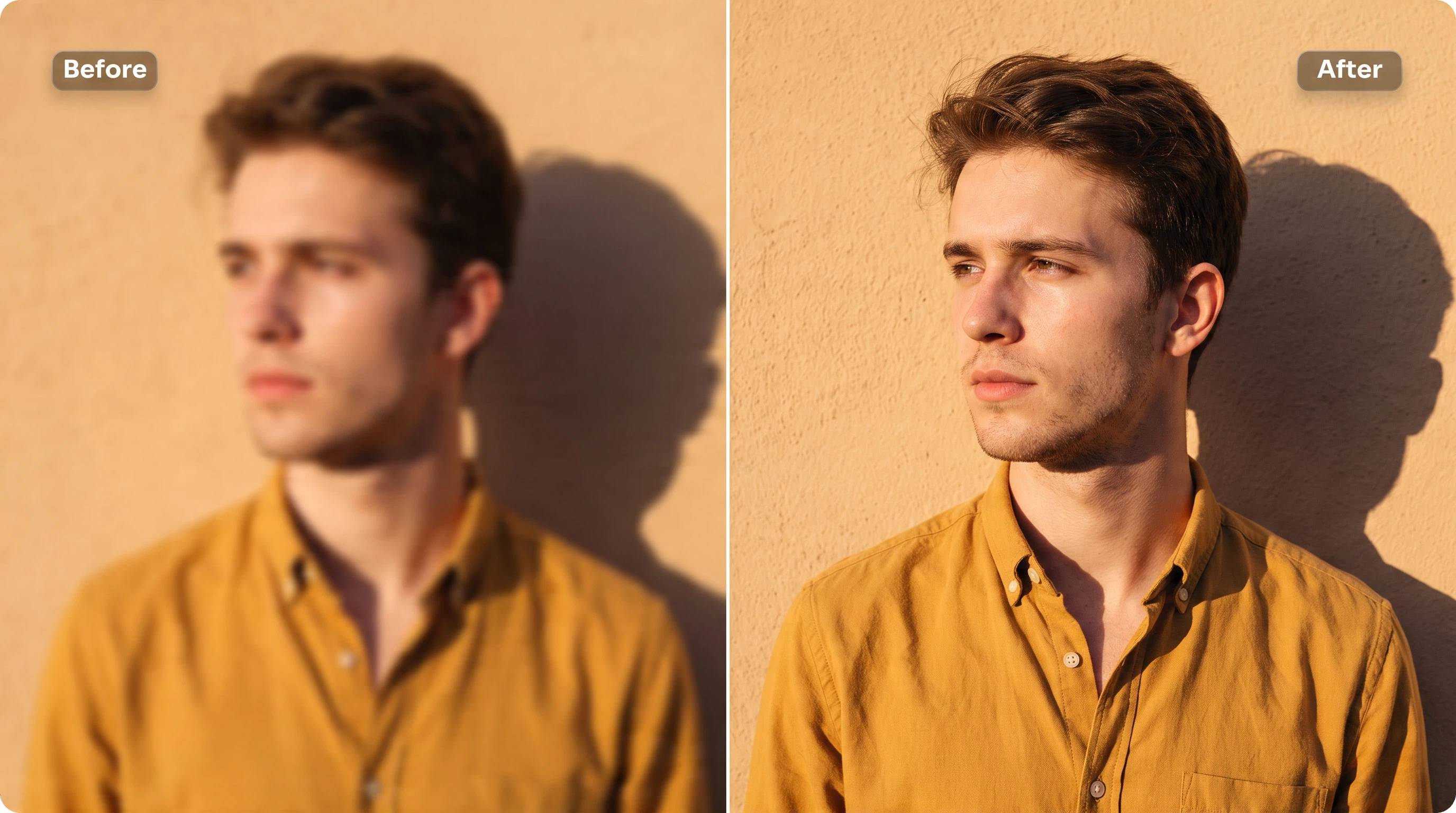
Portraits
AI enhances facial features, hair, and skin textures while preserving a natural appearance, making portraits look sharper for printing, social media, or professional portfolios.
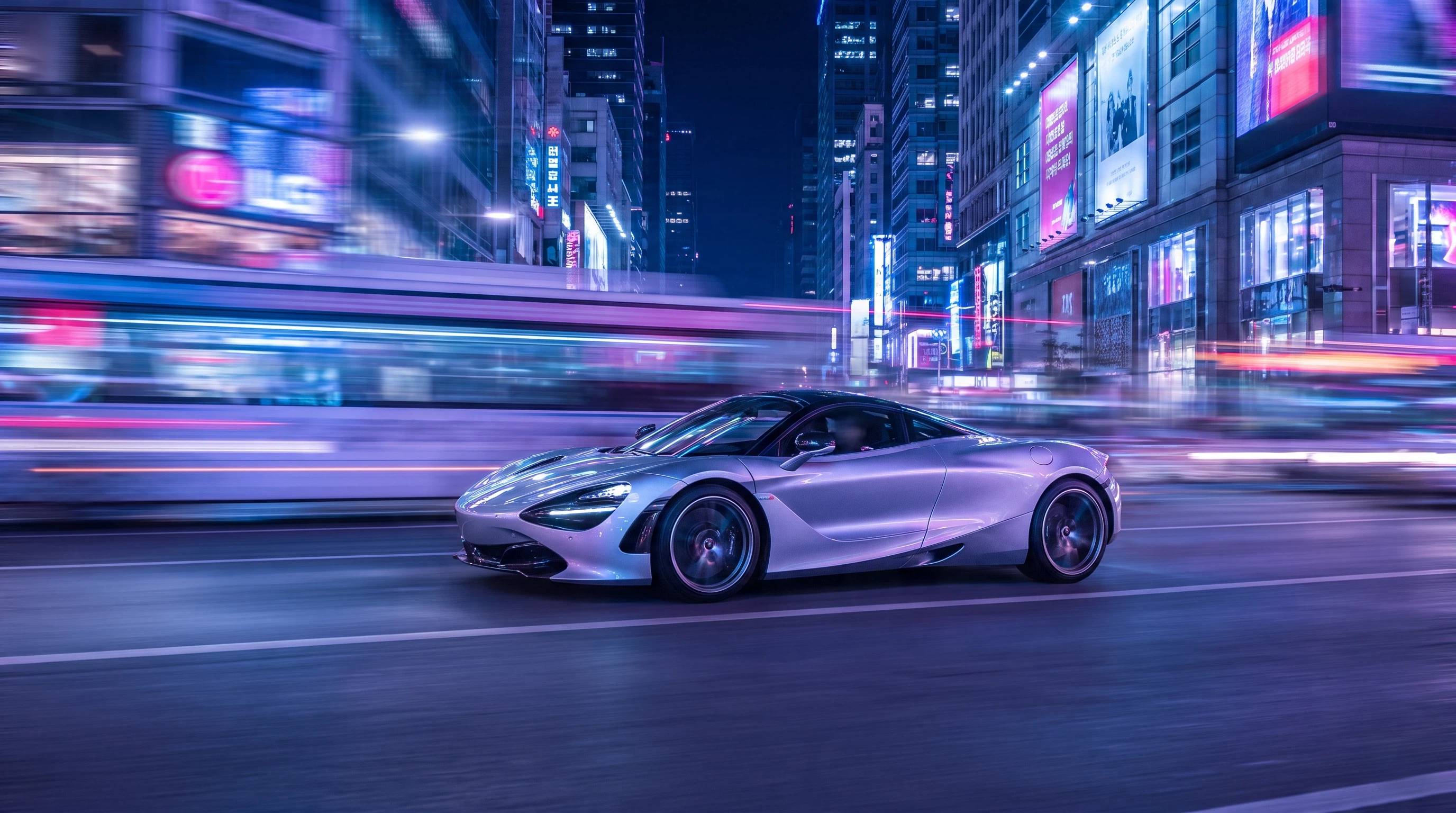
AI-generated images
Many AI-generated images are created at limited resolutions. An online AI image upscaler increases image size while rebuilding textures and reducing artifacts for cleaner final results.
Print files
Whether for posters, brochures, banners, or large-format prints, AI upscaling adds resolution and detail that helps images remain crisp when printed at larger sizes.
Compressed web assets
Images downloaded from websites or social platforms often lose quality through compression. AI upscaling can recover some texture and sharpness, making them more suitable for reuse.
When AI upscaling won't improve an image
AI can reconstruct details, but it cannot recreate information that never existed. In some situations, upscaling may enlarge flaws rather than produce a noticeably better image.
Extremely compressed files
Heavy JPEG compression removes fine details permanently. AI may reduce visible artifacts, but it cannot fully restore information that has already been discarded.
Motion blur
Blur caused by camera or subject movement affects the entire image. While AI may improve perceived sharpness slightly, it cannot completely reverse severe motion blur.
Out-of-focus photos
If the original image is significantly out of focus, important details will never be captured by the camera. Upscaling can enlarge the image but cannot accurately recreate missing detail.
Low-light noise
Images captured in poor lighting often contain digital noise and grain. AI can reduce some noise, but aggressive enhancement may also smooth textures or introduce artificial details.
Missing image data
When parts of an image are cropped, overexposed, or severely damaged, AI can only estimate what should be there. The results may look convincing but are not true reconstructions of the original content.
Review 6 Best image upscalers in 2026
Each tool excels in a different area, so there isn't a single best choice for everyone. Some prioritize maximum photo fidelity, while others focus on creative enhancement, privacy, batch processing, or ecommerce workflows. Here's how the leading AI image upscalers performed in our testing.
|
Tool |
Best for |
Key strength |
Main limitation |
|---|---|---|---|
|
Topaz Gigapixel AI |
Professional photography & print |
Outstanding photo fidelity, natural detail recovery, and desktop processing |
Premium pricing and paid updates |
|
Magnific AI |
AI artwork & creative images |
Exceptional texture generation and creative detail enhancement |
Can invent details, reducing photo accuracy |
|
Upscayl |
Free local upscaling |
Open-source, privacy-friendly, unlimited desktop use |
Lower fidelity than premium tools |
|
Let's Enhance |
Ecommerce catalogs & batch processing |
Browser-based workflow with bulk image enhancement |
Credit-based pricing limits heavy use |
|
Upscale.media |
Quick online upscaling |
Fast, simple, and free for occasional use |
Limited controls and free export restrictions |
|
Designkit |
Ecommerce image workflows |
Combines AI enhancement with product backgrounds and marketing assets |
Not the strongest choice for maximum photo fidelity alone |
Topaz Gigapixel AI
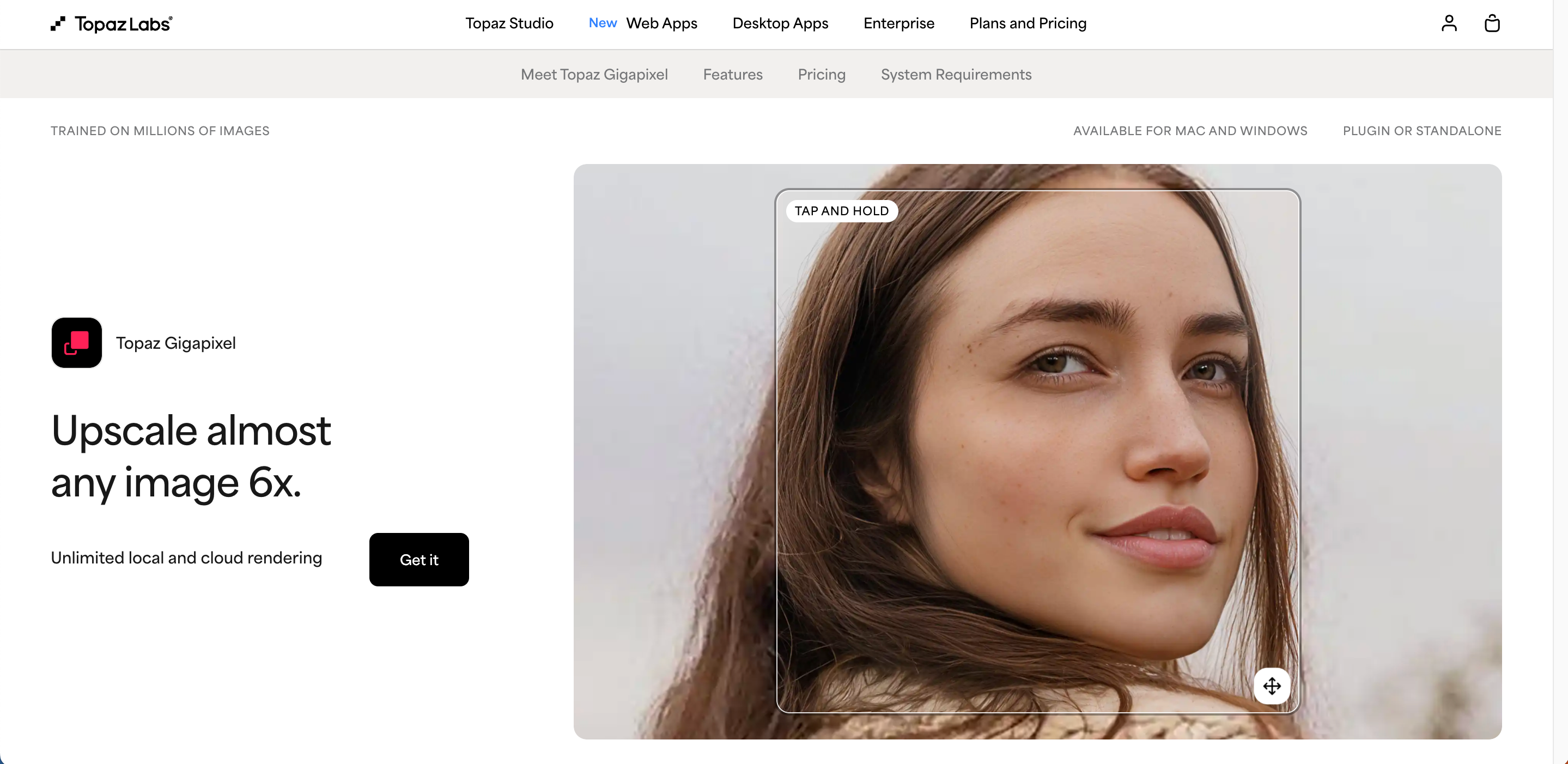
Topaz Gigapixel AI is the strongest choice for professional photo upscaling, delivering excellent detail recovery and natural textures for photography and print. It runs locally for maximum quality and privacy. Its biggest drawbacks are the premium price and subscription costs for ongoing updates.
Magnific AI
Magnific AI excels at enhancing AI art, illustrations, and creative images by generating rich textures and fine details. The results are visually impressive but may not accurately reflect the original image, making it less suitable for documentary or archival photography.

Upscayl
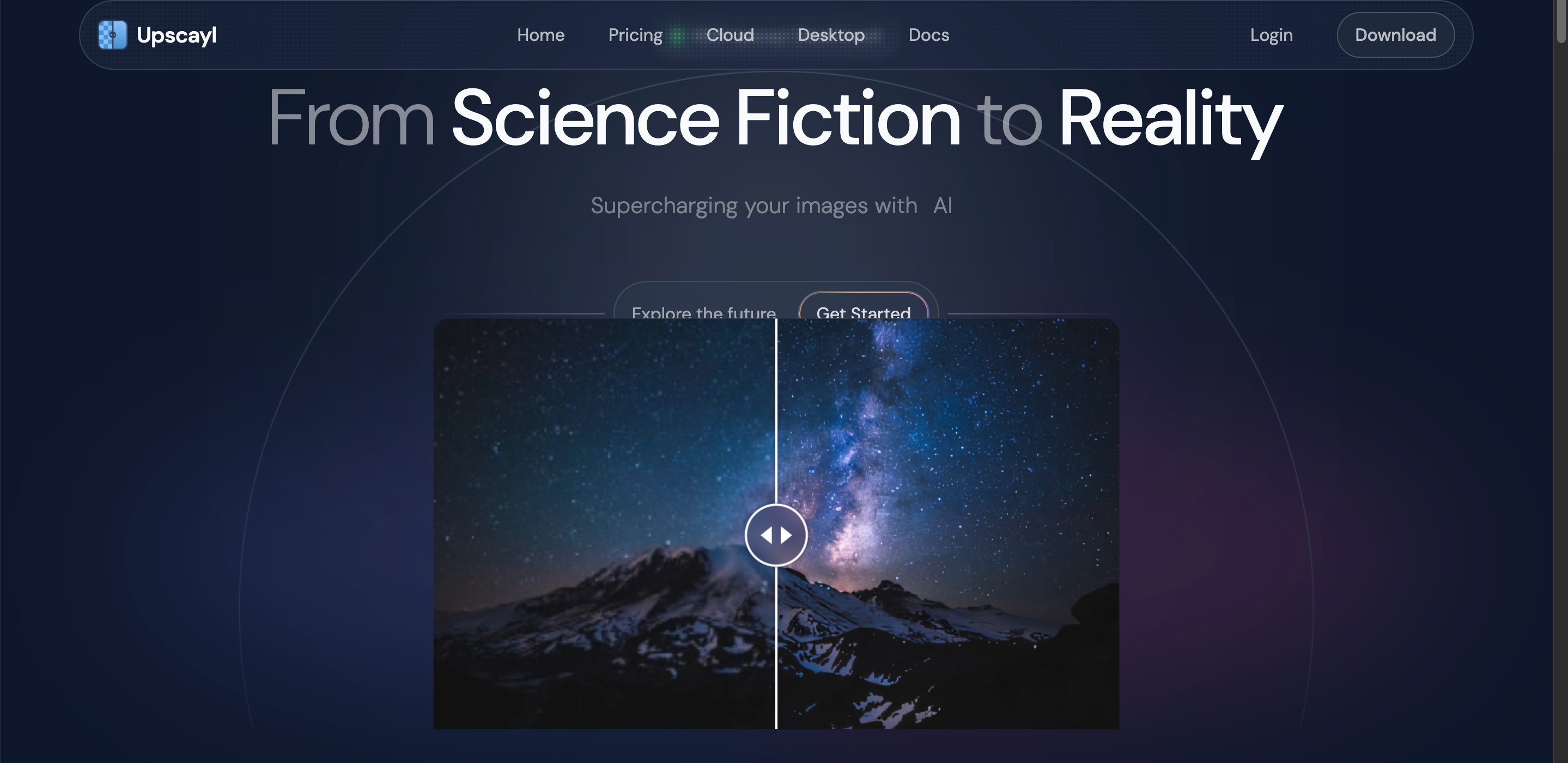
Upscayl is one of the best free desktop upscalers, offering local processing with no uploads or recurring fees. It delivers solid results for everyday images while protecting privacy, although its output quality generally falls behind premium AI upscaling tools.
Let's Enhance
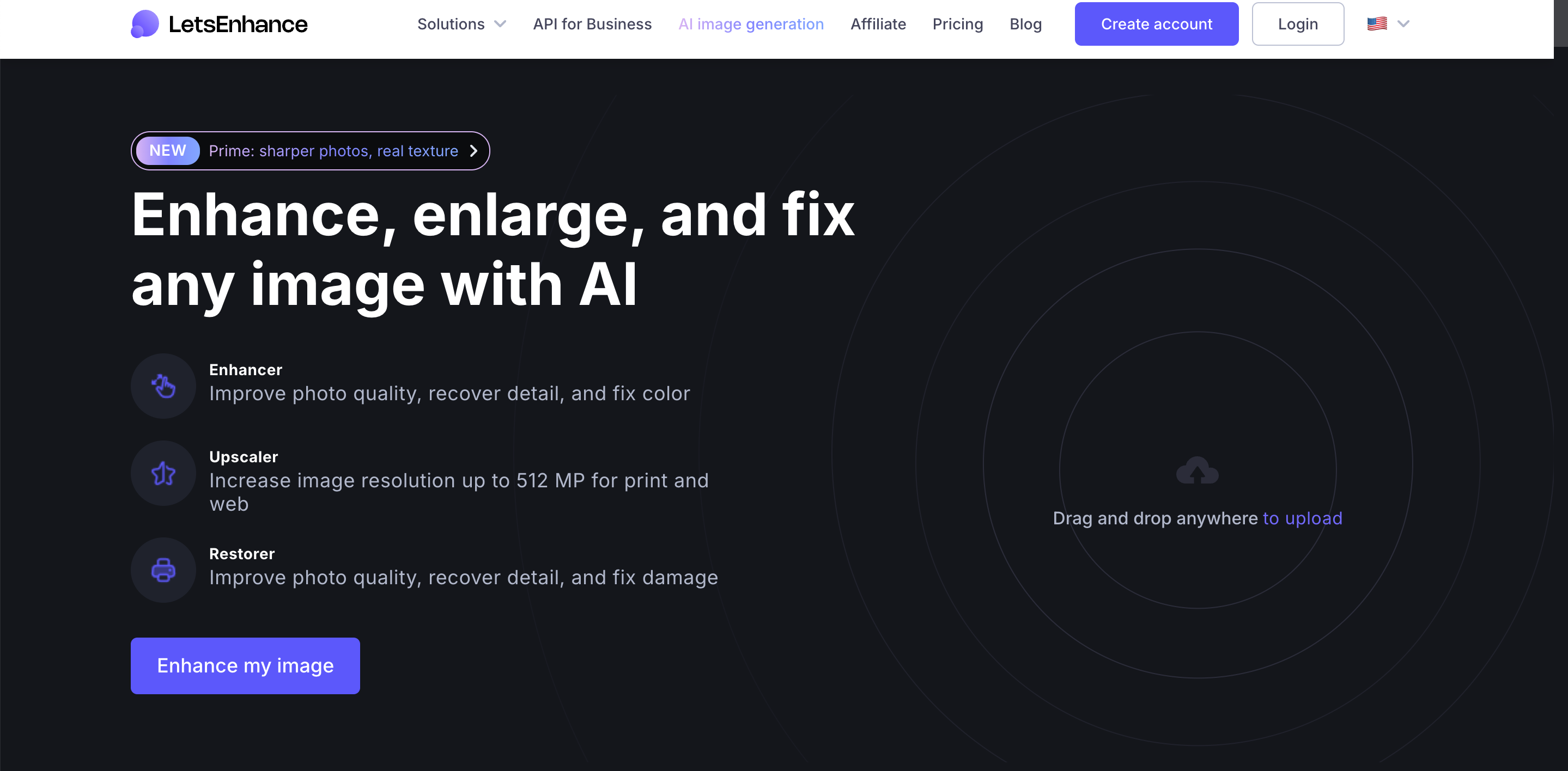
Let's Enhance provides browser-based upscaling with convenient batch processing for ecommerce catalogs and large image libraries. It also improves color and clarity automatically. The main limitation is its credit-based pricing, which can become costly for frequent users.
Upscale.media
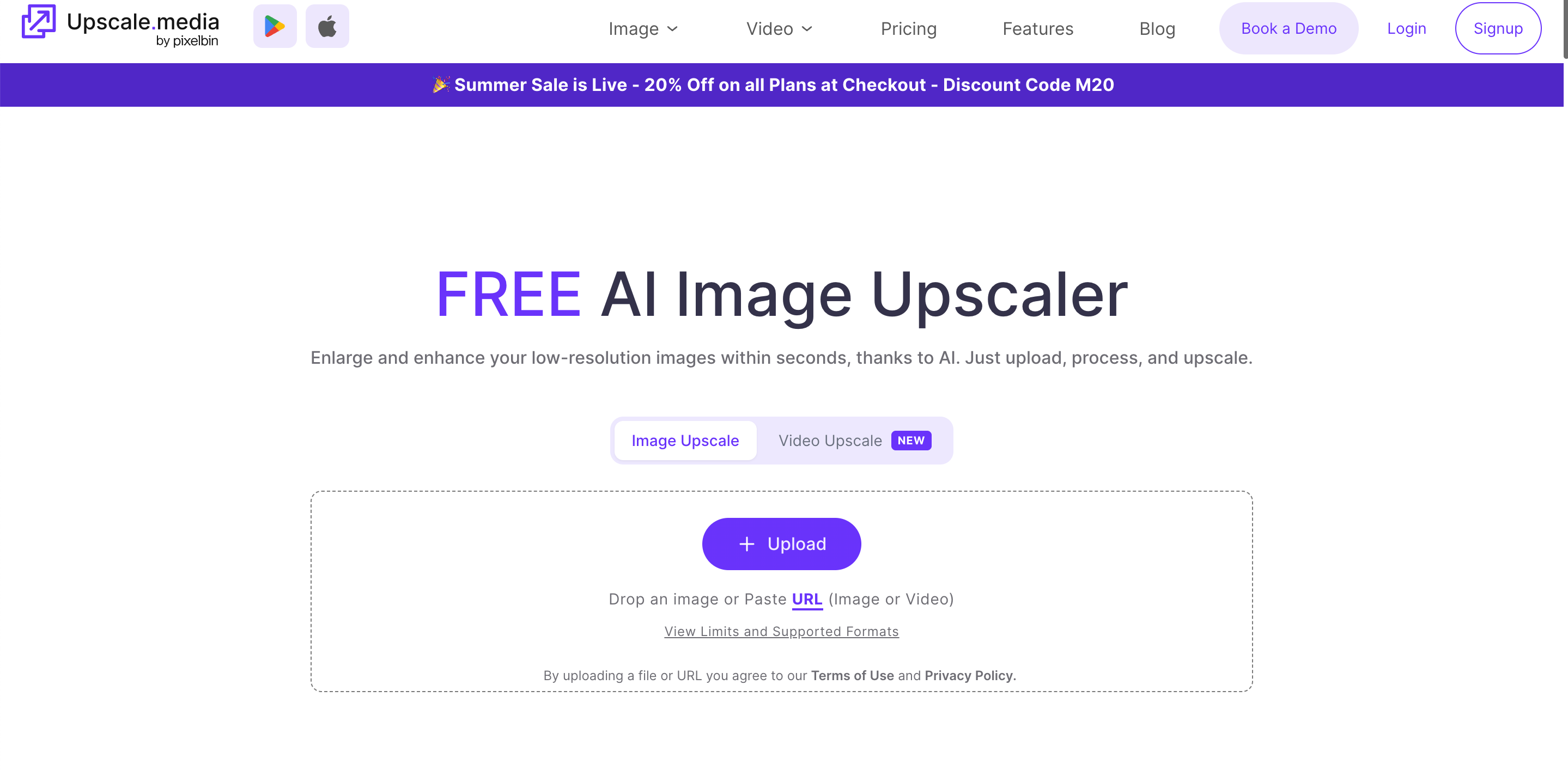
Upscale.media is ideal for quick online image enlargement without installing software. Its free tier works well for occasional edits and social media graphics, but export limits and fewer advanced controls make it less suitable for professional workflows.
Designkit
Designkit isn't the top choice for pure image upscaling, but it shines in ecommerce workflows. Along with AI enhancement, it helps create product backgrounds, lifestyle visuals, and marketplace-ready assets, making it a practical solution for online sellers and marketing teams.
How we tested the best image upscalers in 2026
To evaluate each tool fairly, we tested them using the same set of images and compared their output under identical conditions. Instead of relying on marketing claims, we assessed real-world performance across multiple image types, focusing on detail recovery, sharpness, artifact handling, speed, and overall usability.
Test images and sample types
Our test set included a mix of image categories that represent common upscaling scenarios. We used high-resolution product photos, standard digital photographs, AI-generated artwork, and heavily compressed JPEG files to measure how well each tool reconstructed fine details, preserved textures, handled noise, and maintained natural-looking results across different content types.
Evaluation criteria
Each image upscaler was assessed using consistent benchmarks to ensure fair comparisons. We evaluated output quality, detail reconstruction, edge sharpness, texture preservation, artifact reduction, color accuracy, processing speed, ease of use, supported scaling options, batch-processing capabilities, export quality, and overall value for different user needs.
|
Evaluation criteria |
What we evaluate |
Why it matters |
|---|---|---|
|
Detail Preservation |
How well the AI upscaler restores fine details such as edges, patterns, textures, and small elements without creating artificial details |
A good upscaler should improve image clarity while keeping the original subject recognizable and natural |
|
Texture Accuracy |
Whether the tool maintains realistic surface details, including fabric, skin, hair, product materials, and background textures |
Accurate textures are essential for professional photography, product images, and high-resolution prints |
|
Artifact Control |
How effectively the tool avoids common AI issues such as halos, unnatural sharpening, blurry areas, distorted shapes, or generated details that were not originally present |
High-quality upscaling should enhance an image without introducing visible errors |
|
Processing Speed |
How quickly the tool completes image enhancement and whether performance remains consistent for larger files or multiple images |
Faster processing helps creators and businesses produce more content without slowing down workflows |
|
Workflow Features |
Additional capabilities beyond basic upscaling, such as batch processing, image enhancement, background editing, resizing options, and export formats |
Professional users often need a complete workflow rather than a single image enlargement tool |
|
Pricing Value |
Whether the tool's cost matches its features, output quality, usage limits, and target audience |
The best choice depends on your needs, from free quick edits to professional commercial production |
Scoring method
Rather than relying on a single overall rating, we scored each evaluation category separately and supported every score with zoomed-in image comparisons and reviewer notes. All testing was conducted using the same sample images and settings, with results recorded during testing in July 2026 to ensure a consistent comparison across every tool.
How to choose an AI image upscaler
The best AI image upscaler depends on what you're enhancing. Consider your image type, quality requirements, workflow, and budget before choosing a tool.
Choose the Right AI Upscaler for Product Photos
Choose a tool that preserves fine details, accurate colors, and clean edges. If you also need backgrounds, banners, or marketplace-ready visuals, an ecommerce-focused workflow can save time.
For product photos
Choose a tool that preserves fine details, accurate colors, and clean edges. If you also need backgrounds, banners, or marketplace-ready visuals, an ecommerce-focused workflow can save time.
For AI artwork
Look for an upscaler that enhances textures and creative details without making the image appear flat. Tools built for generative art generally produce more visually rich results.
For printing
Prioritize photo fidelity, natural textures, and high-resolution exports. Desktop AI upscalers are typically the best choice for large-format prints where image quality matters most.
For social and marketplace listings
Speed and convenience are often more important than maximum resolution. Browser-based upscalers with batch processing are ideal for preparing images for online stores and social platforms.
For free and private local use
If privacy is important, choose a desktop AI upscaler that processes images locally instead of uploading them to the cloud. Free local tools are also a good option for occasional upscaling without subscription costs.
What a properly upscaled image looks like
The best way to judge an AI-upscaled image is to inspect it at full size rather than relying on the thumbnail. Look for realistic textures, clean edges, consistent detail, and the correct resolution for where the image will be used. A successful upscale should enhance the original image without making it look artificial.
Natural surface texture
Zoom to 100% and examine different materials closely. Fabric should show visible fibers, wood should retain natural grain, metal should have smooth reflections, jewelry should display crisp gemstone and metal details, and food should look fresh with realistic texture. If surfaces appear overly smooth or artificially detailed, the upscale may be too aggressive.
Crisp product edges
Inspect the boundaries where the product meets the background. Good edge reconstruction keeps outlines sharp, smooth, and accurately defined without creating halos, jagged lines, or blurry borders. Logos, labels, text, and small product features should also remain clear after enlargement.
Correct resolution for every destination
A properly upscaled image matches the requirements of its final destination. Verify that the dimensions, aspect ratio, and file quality are appropriate for ecommerce listings, websites, social media, or print. Larger files are only beneficial if they meet the platform's specifications without sacrificing image quality.
Consistent results across the entire catalog
Compare several product images side by side instead of evaluating them individually. Sharpness, lighting, color, texture, and contrast should remain consistent throughout the catalog. Uniform image quality creates a more professional storefront, strengthens brand recognition, and helps customers trust the products they see.
How Designkit turns enhanced images into marketing-ready assets
Upscaling is only the first step in preparing ecommerce visuals. Once an image is clearer, it often needs backgrounds, lifestyle scenes, and platform-specific exports before it's ready to publish. Designkit focuses on this production workflow rather than replacing dedicated photo upscalers.
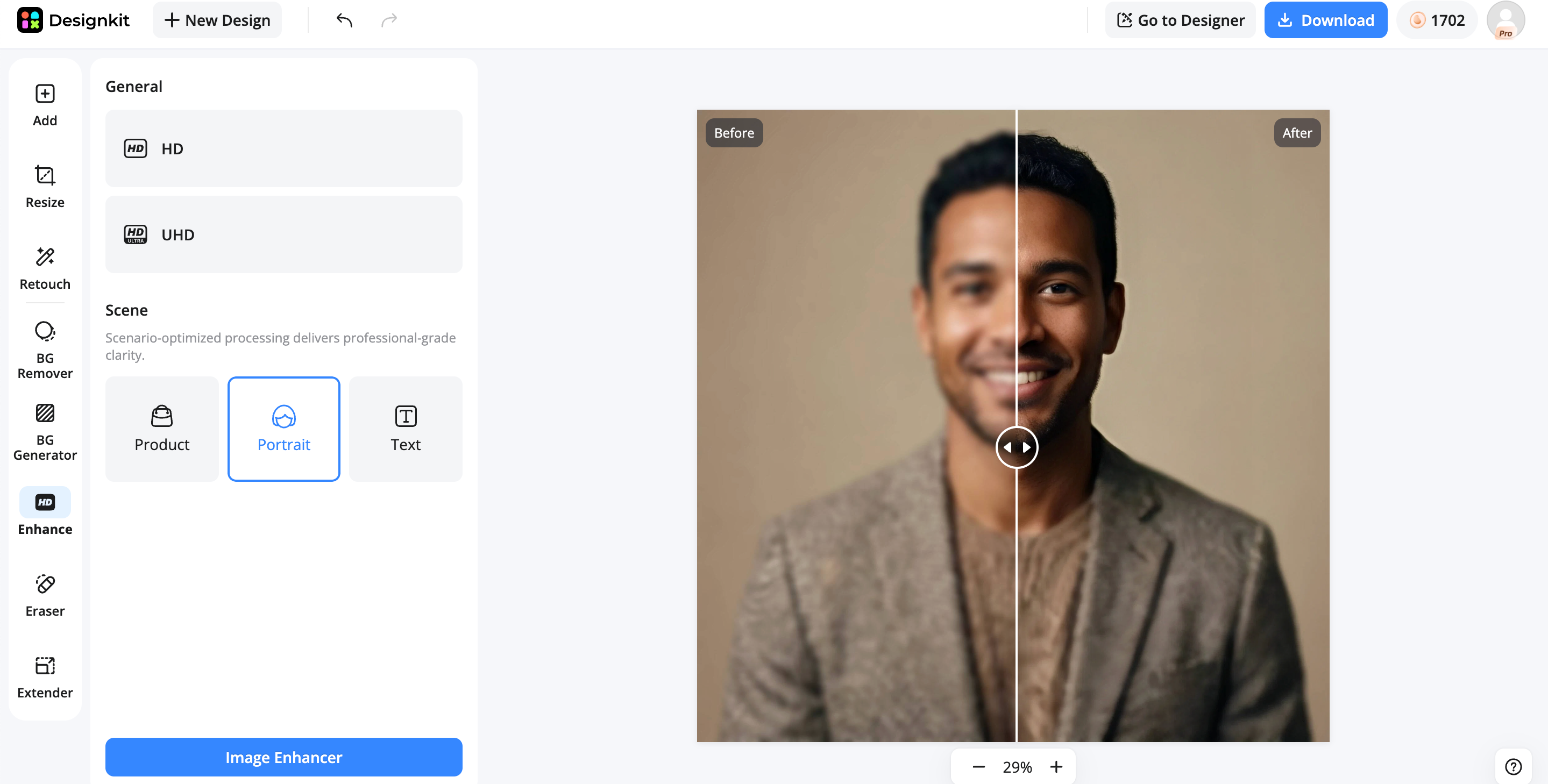
Step 1: Improve your starting image
Enhance product photos to improve clarity and resolution, creating a stronger source image before editing or designing marketing assets.
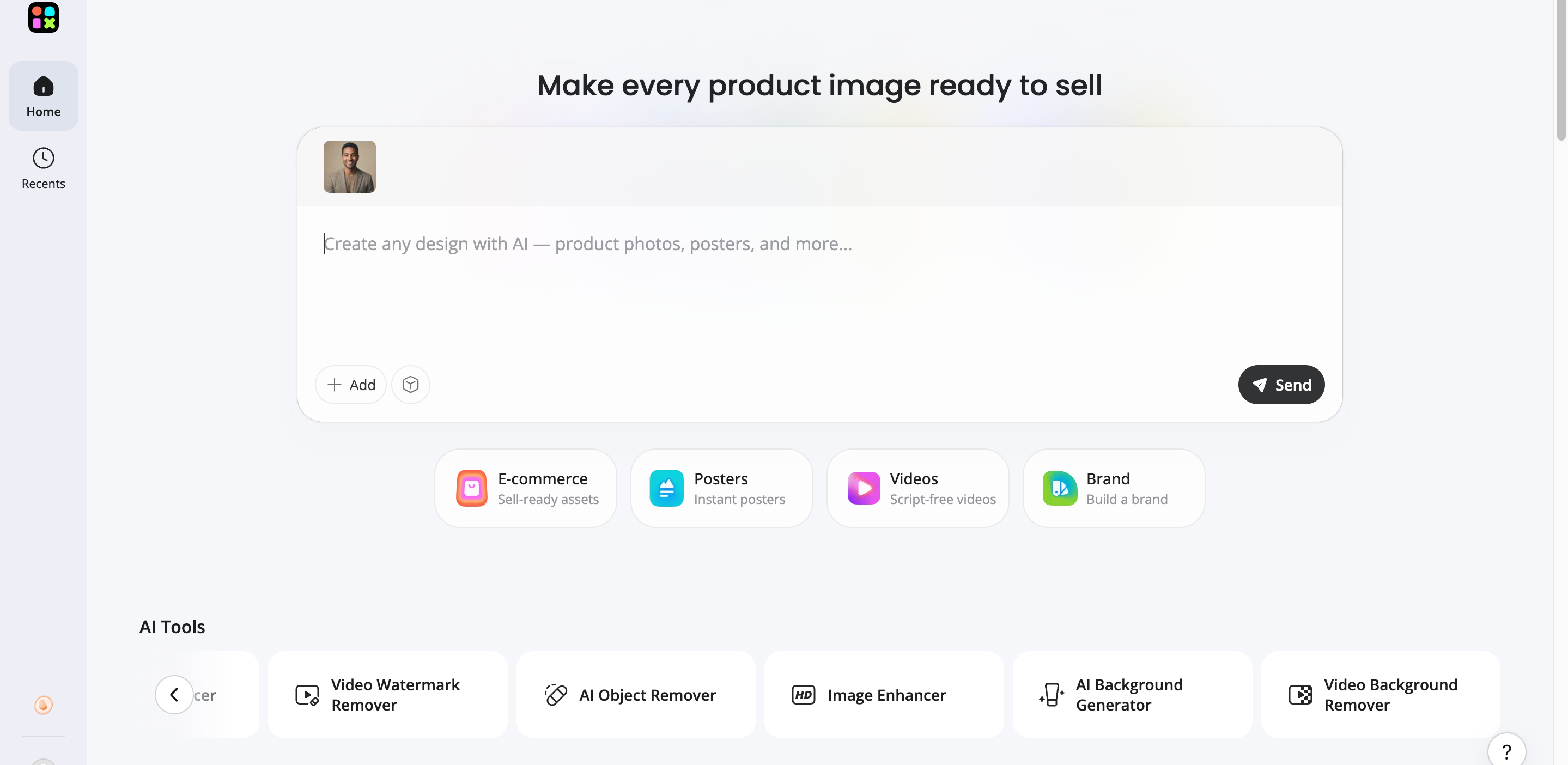
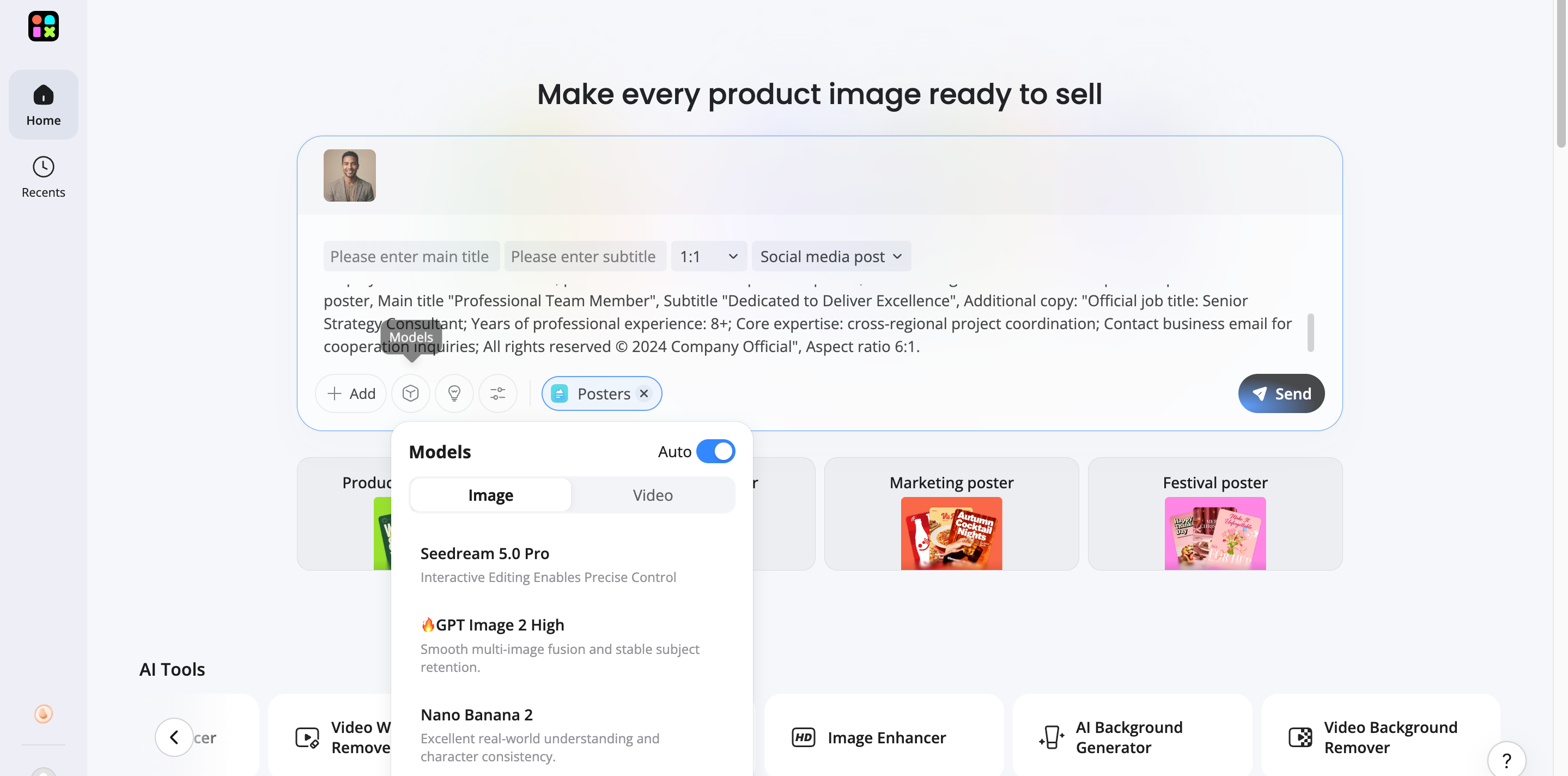
Step 2: Turn images into creative assets
Convert enhanced images into lifestyle scenes, clean backgrounds, and multiple creative variations for ecommerce and advertising.
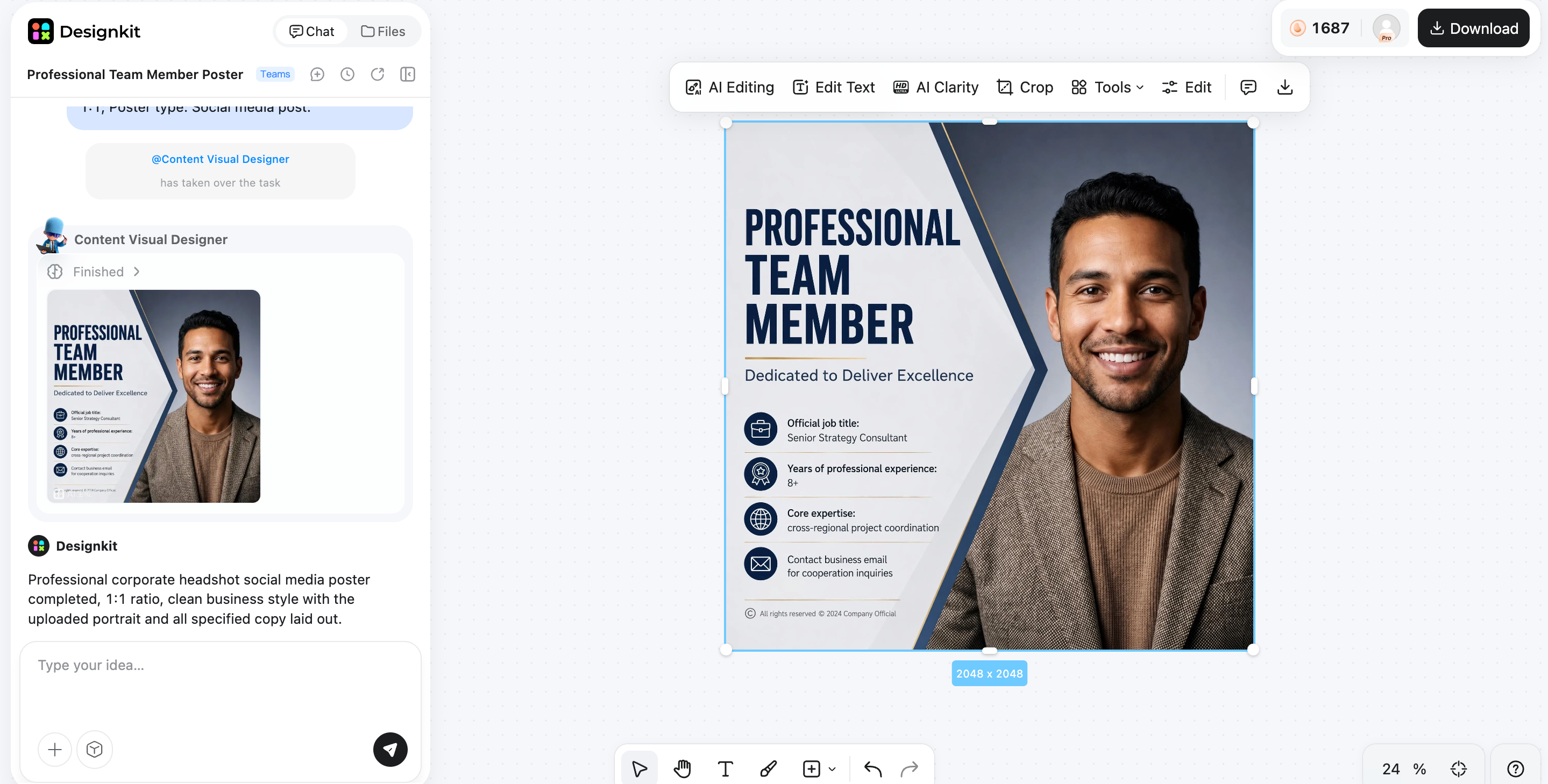
Step 3: Export assets for different channels
Export optimized visuals in marketplace and social media sizes from one workflow, ready to publish across multiple sales channels.
Common mistakes when using AI image upscalers
Even the best AI image upscalers can produce disappointing results if they're used incorrectly. Avoid these common mistakes to get sharper, more natural-looking images that are ready for their intended platform.
Using the wrong AI model for the content type
Different AI models are trained for different content. A model designed for portraits may not perform well on product photos or digital artwork. Choosing the right model for your image type usually produces better detail, textures, and more natural results.
Choosing the highest upscale factor automatically
A larger upscale isn't always better. While 4× enlargement sounds appealing, it can introduce artificial textures, halos, or over-sharpening if the source image lacks enough detail. In many cases, a 2× upscale produces cleaner, more realistic results with fewer artifacts.
Ignoring platform image specifications
Upscaling alone doesn't guarantee the correct output. Each marketplace has recommended image sizes and aspect ratios. For example:
-
Shopify: High-resolution square or landscape product images.
-
Amazon: Product images with sufficient resolution for zoom functionality.
-
Etsy: Large, clear listing photos with consistent aspect ratios.
-
TikTok Shop: Mobile-optimized images that fit vertical shopping experiences.
Skipping a 100% zoom quality review
Always inspect the final image at 100% zoom before exporting. Check for:
-
Haloing around edges
-
Texture loss on fine details
-
Over-sharpening or unnatural outlines
-
AI artifacts or distorted patterns
Treating upscaling as the final deliverable
Upscaling improves image resolution, but it doesn't complete the creative workflow. Most images still benefit from cropping, background refinement, color adjustments, and exporting in platform-specific sizes before they're ready for ecommerce listings, social media, or marketing campaigns.
Conclusion
There isn't one AI image upscaler that's best for every use case. Choose a tool based on your needs, Topaz Gigapixel AI for maximum photo fidelity, Magnific AI for creative artwork, Upscayl for free local processing, or browser-based tools for convenience. If your goal is to go beyond image enhancement and quickly create ecommerce-ready listings, backgrounds, and marketing assets, Designkit provides a streamlined enhance-to-publish workflow.
Frequently Asked Questions
What is the best image upscaler in 2026?
What is the best free AI image upscaler?
Upscayl is one of the best free AI image upscalers because it runs locally, supports unlimited use, and doesn't require cloud uploads. For users who also need marketplace-ready creatives after enhancement, Designkit combines image improvement with background editing and asset generation in a single workflow.
Is there a free AI image upscaler without a watermark?
Yes. Several AI upscalers offer free usage without adding watermarks, although they may limit export size or monthly credits. If your next step is preparing images for online stores or social channels, Designkit helps transform enhanced images into polished marketing assets.
What resolution do I need for e-commerce listings?
The ideal resolution depends on the marketplace. Most platforms recommend high-resolution images that support zoom while maintaining fast page loading. After improving image quality, Designkit makes it easy to export optimized sizes for different ecommerce platforms from one workflow.
Can AI upscalers fix AI-generated images?
Yes. AI upscalers can improve the resolution of AI-generated artwork, sharpen details, and reduce visible artifacts. Once the image is enhanced, Designkit helps turn it into polished ecommerce creatives by adding backgrounds, lifestyle scenes, and platform-ready layouts.
Does upscaling work on very blurry or heavily compressed images?
AI can improve some low-quality images, but it cannot fully recover details that were never captured. Severe blur and heavy compression still limit the final result. When you have the best possible source image, Designkit helps prepare it for publishing across multiple sales channels.
Is 2× or 4× upscaling better?
Not always. A 2× upscale often produces cleaner and more natural results, while 4× can introduce artificial textures if the original image lacks detail. After choosing the right upscale level, Designkit helps convert the final image into marketplace and social-ready assets.
What's the difference between upscaling and resizing?
Resizing simply changes image dimensions by stretching or shrinking pixels, while AI upscaling reconstructs details to improve perceived quality. Once your image has been enhanced, Designkit can extend the workflow with background editing, creative variations, and export-ready visuals.
Do I need different upscaled versions for different platforms?
Usually, yes. Every platform has its own recommended dimensions, aspect ratios, and file requirements. Instead of using one image everywhere, create optimized versions for each destination. Designkit simplifies this by exporting channel-specific assets from a single enhanced source image.
You May Also Like
Remove.bg Shutting Down Dec 1, 2026: What Users Are Saying

7 Best Remove.bg Alternatives in 2026: Free & Paid Tools
Instagram Carousel: What It Is, How to Post & Create One
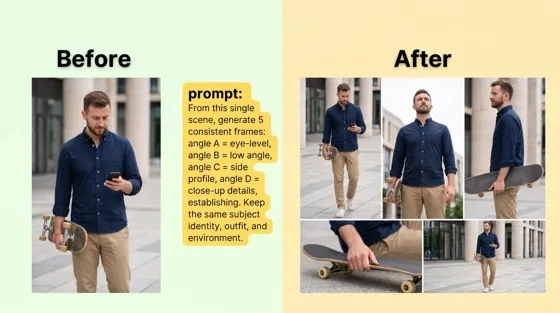
Nano Banana Prompts: 20+ Examples for Better AI Images

Ideogram AI Review 2026: Features, Pricing & Alternatives
Free Mac Photo Editor: 5 Tools Compared for Mac Users
How to Crop a Photo Into a Circle Online (Keep Quality)
How to Make an Image Transparent Online (AI Guide)

Pixlr Background Remover Review 2026: Features, Pricing & Alternatives

How to Fix Overexposed Photos: Recover Highlights Fast
OpenArt AI Review 2026: Features, Pricing & Alternatives
Best AI Headshot Generator: 9 Tools Compared for 2026
Best Stencil Maker Tools 2026: Turn Photos Into Stencils
Pixelbin Watermark Remover Review: Image & Video Results Tested
How to Make a Sticker on iPhone: Easy Step by Step Guide
Best AI Logo Generator in 2026: 10 Tools Compared
How to Turn a Photo Into a Cartoon: A Beginner-Friendly Guide
Landscape vs Portrait: Key Differences & Best Uses in 2026
How to Remove Watermark From Photo: AI, Photoshop & More
How to Fix Pixelated Photos: Photoshop, AI Tools & Tips
Bing Image Creator: How It Works, Features, Uses & Alternatives
How to Remove People from Photos with AI: A Step-by-Step Guide
How to Increase Image Resolution: AI, Photoshop & PPI
How to Add Text to a Photo: 8 Tips for Better Results
How to Fix Grainy Photos: Easy Ways to Clear Images

Creative Profile Picture Ideas for Every Style and Platform
Evoto AI Review 2026: Features, Pricing, Pros & Cons
Pixlr Photo Editor Review: Features, Pricing & Alternatives
Best AI Image Extender Tools in 2026: Expand Photos with AI
How to Make a Collage on iPhone: Easy Guide for 2026
How to Sharpen an Image in Photoshop (Smart Sharpen and Unsharp Mask)
Best Image Background Remover Tools in 2026: AI Tools Compared
How to Make Transparent Background in Paint: Step-by-Step Guide
How to Resize an Image: Best Methods, Tools & Quality Tips
Best AI Image Generator Tools in 2026: Top AI Platforms Compared

Remove.bg Review 2026: Features, Pricing & Is It Worth It?
Luminar Neo Photo Editor Review 2026: AI Features, Price & Pros

How to Post Multiple Photos on Instagram (2026 Guide)

25 Facebook Cover Photo Ideas for Personal & Business Pages

What Is a PFP? Meaning, Examples & How to Create One
Can You Edit an Instagram Post After Posting?

11 Best Canva Alternatives in 2026 for AI Design & Marketing
8 Best Midjourney Alternatives in 2026: Features, Pricing & Comparison
How to Restore Old Photos: AI Tools, Tips & Best Methods
Pixelcut AI Review 2026: Features, Pricing, Pros, Cons & Alternatives
How to Apply Watermark to Photos: Methods, Tips & AI Tools
How to Remove a Background in Illustrator: 4 Easy Methods
How to Change Background Color on Instagram Story (Easy Guide)
8 Best AI Poster Generators in 2026: Create Posters Faster with AI
10 Best AI Image Enhancers in 2026: Tested & Compared
10 Best AI Image Editors in 2026: Features, Pricing & Comparison
7 Best AI Background Changer in 2026: Remove & Replace Photo Backgrounds
Luminar Neo vs Lightroom: Features, Pricing & Comparison 2026
Kittl Review 2026: Is It Worth It? Features & Pricing
How to Make a Blurry Image Clear: 5 AI & Manual Ways
How to Remove Background on iPhone: 5 Easy Methods (2026)
Photoroom Background Remover Review 2026: Features & Alternatives
How to Remove Background in Canva: A Step-by-Step Guide
How to Remove Background in GIMP: Beginner-Friendly Guide

Funny Dog Memes to Try: Doge Meaning and 10 Original Ideas
Back to School Checklist 2026: Supplies, Timeline, and Planning
Recraft AI Review 2026: Features, Pricing, Pros, Cons & Alternatives
How to Make an Image Transparent in Google Slides: Opacity & Background Removal

VanceAI Photo Enhancer Review: Features, Pricing & Alternatives in 2026
What Does Emojify Mean? Text, Photos, & Emoji Art Explained
Top 8 Online Background Removers for Ecommerce Photos (2026)
How to Remove Background in Photoshop: 7 Easy Methods
6 Best AI Image Upscalers 2026: Tools Tested & Compared
Project Indigo Review: Is It Better Than iPhone Camera?
How Big Is an 8x10 Photo? Size, Pixels & Frame Guide
How Big Is a 4x6 Photo? Dimensions, Pixels & Printing Tips
Picsart AI Review: Features, Pricing, Pros, Cons & Alternatives

Lovart AI Review: AI Design Agent Features, Pricing & Alternatives
Fotor AI Image Generator Review: Features, Pricing & Alternatives

How to Add Emoji to Photo Online for Free
Emoji Wallpaper Ideas & How to Make One Online (2026)
Minimalist Poster Design: How to Make a Clean Poster (2026)

How to Make a Custom Poster That Is Ready to Print
Instagram Image Size Guide 2026: Post, Reel, Story & Carousel Specs
LinkedIn Image Size Guide: Profile, Post & Banner Dimensions
YouTube Profile Image Size: Best Dimensions & Safe Area 2026

How to Edit Amazon Product Photos That Boost Sales Fast
Turn Sharpened Photos Into Listing-Ready Creative
Enhance product photos with AI, then prepare marketplace-ready layouts and marketing assets in Designkit when you need more than enlargement alone.
